


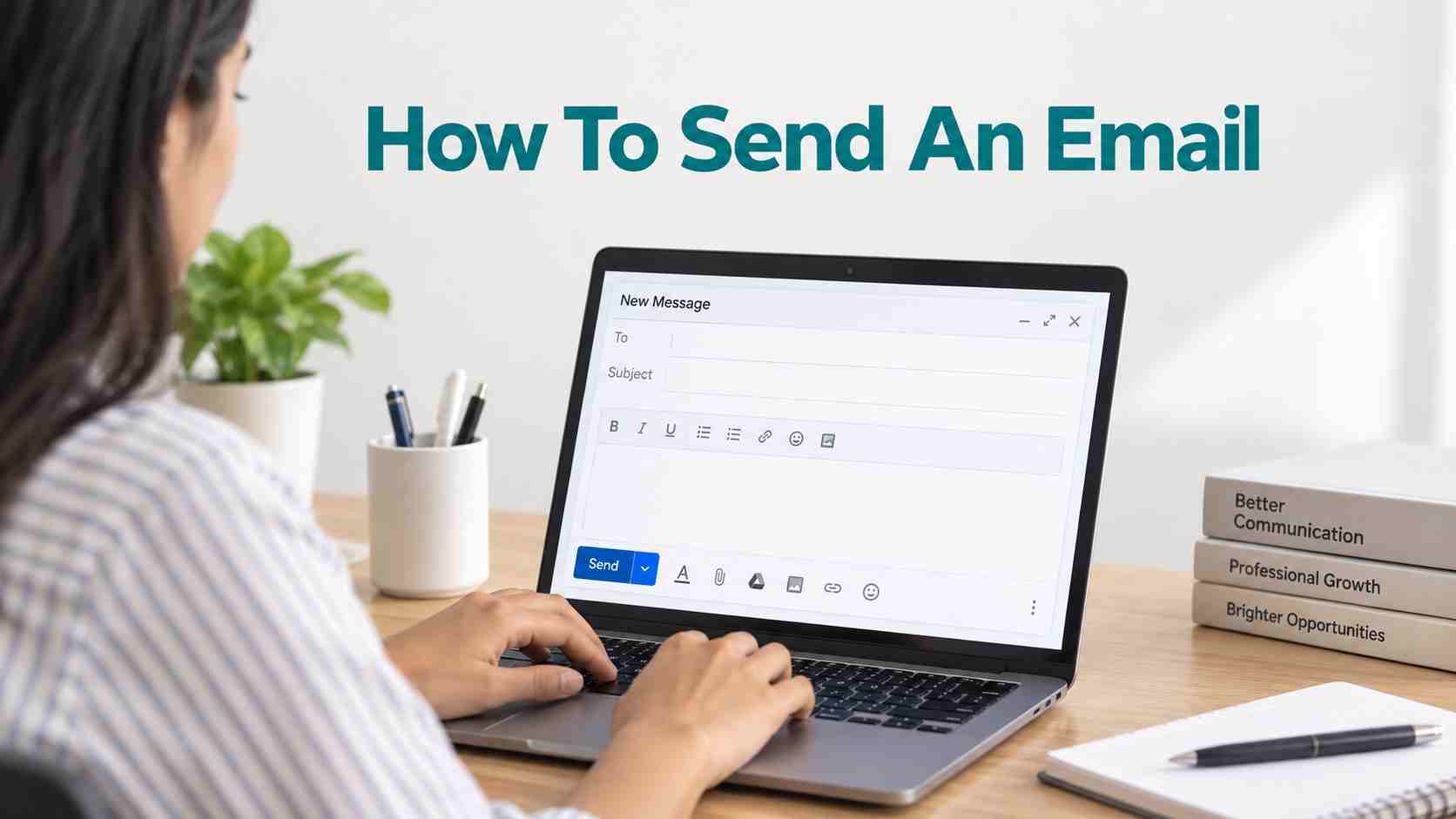
Need to send an email for the first time but do not know where to start? You may have an email account, but options like Compose Email, To, Subject, CC, BCC and attachment can still feel confusing.
Maybe you need to email someone about a job, send your resume or share a document, but you are not sure how to start or which option to choose. Don’t worry, we have got your back! From composing a new email and adding the recipient to writing your message, attaching a file and sending it, this guide covers the entire process. We will also explain how to email someone from a phone or computer in simple words.
Checklist Before Sending An Email
Before you know how to email someone, keep these things ready:
- An email account: You need an email account on email service providers such as Gmail or Outlook.
- The receiver’s email address: Keep the correct email address of the person or company you want to contact.
- Your message: Know what you want to say before you start writing.
- A file, if needed: Keep your resume, PDF, photo or other document ready if you need to send one.
Once these are ready, you can start writing your email.
Read: Email Full Form: Meaning & How It Works works
Steps To Send An Email
The exact buttons may look slightly different depending on the email service you use. The basic process is similar. In Gmail, for example, you start by selecting Compose New Email, add the recipient, subject and message, and then select Send.
Step 1: Open Your Email Account
First, open your email service on your phone or computer and sign in to your account. Once your inbox opens, look for the option to create a new message. In Gmail, this option is called Compose.
Step 2: Click “Compose Email”
Click Compose to open a new email. A new message window will appear. This is where you will add the person you want to contact, write your subject and type your message. In simple words, Compose means starting a new email.
Step 3: Add The Person You Want To Email
The next step is to add the email address of the receiver. Look for the “To”, “CC” and “BCC” fields and enter the email address of the person you want to contact. For example, if you are sending your resume to a company, enter the email address given by the company in the To field.
Make sure you check the email address carefully. A small spelling mistake can send your message to the wrong address or prevent it from reaching the intended person.
Step 4: Choose: To, CC or BCC
You may see three options when adding people to an email. Here is what they mean:
- To: Use this for the main person or people who need to receive your email.
- CC: Use this when another person also needs to see the email. The people receiving the email can generally see who has been added in CC.
- BCC: Use this when you want someone to receive a copy without showing their email address to the other recipients. However, it is important to understand that BCC is not an ethical practice in an organisation or when sharing something confidential.
For example, if you are sending a leave request to your manager and only your manager needs to receive it, you can simply use the “To” field.
Step 5: Add A Subject
The Subject is a short line that tells the receiver what your email is about. Write something clear instead of leaving the subject blank.
For example:
- Job Application for Sales Executive
- Leave Request for Two Days
- Documents Required for Joining
A clear subject helps the receiver understand the purpose of your email before reading the full message.
Step 6: Write Your Message
Now write the main message in the large space below the subject. A simple email can have four parts:
- Email Salutations: Start politely, such as “Dear Sir/Madam” or “Hello [Name],”
- Reason: Explain why you are writing.
- Details: Add the important information the receiver needs.
- Closing: End with a polite line such as “Thank you” or “Regards,” followed by your name.
For example, when sending a resume for a job:
| Dear Sir/Madam, I am writing to apply for the Sales Executive position. Please find my resume attached for your review. Thank you. Regards, [Your Name] |
Keep your message short when a simple request only needs a few lines.
Read: How To Write A Professional Email?
Step 7: Add A File If You Need One
If you need to send a resume, PDF, photo or another document, look for the attachment option, usually shown with a paperclip symbol. Choose the file from your phone or computer and wait for it to finish uploading before sending the email.
For example, when applying for a job, you can attach your resume to the email before clicking Send.
Quick Tip: Before moving ahead, check that you have selected the correct file.
Step 8: Check Your Email Before Sending
Take a few seconds to check everything.This quick check can help you avoid common mistakes, such as sending the wrong document or leaving out an important detail.
Look at:
- The receiver’s email address
- The subject
- Your message
- The attached file, if any
- Spelling and important details
Step 9: Click “Send”
Once everything looks correct, click Send. Your email service will send the message to the person or people you added. In Gmail, the Send button is at the bottom of the message window on a computer and at the top of the message screen in the Android app. Your email has now been sent.
Conclusion
Sending an email may feel confusing the first time, but it becomes much easier once you know where to start and what each option does.
Whether you are contacting someone, sending a resume or sharing a document, a few simple checks before sending can help you avoid common mistakes. Once you send a few emails yourself, the process will start to feel simple and familiar.
FAQs
Q1. Can I send one email to multiple people?
Yes. You can add more than one person while writing an email. Use “To” when the recipients can see each other’s email addresses. For a group where you do not want recipients to see each other’s email addresses, BCC can be used.
Q2. How can I send an email without showing the recipients’ email addresses?
Use BCC when you want to send the same email to several people without showing their email addresses to the other recipients. This can be useful when sending a message to a group of people who do not need to see each other’s contact details.
Q3. What should I do if my email is stuck in the Outbox?
First, check your internet connection and make sure the email service is syncing properly. If the message contains an attachment, check whether the file has finished uploading and whether its size is within the service’s limit. You can also try sending the email again from the web version of your email service.
Q4. What happens if I send an email to the wrong address?
If the email has already been sent, you usually cannot change the recipient afterward. Check the address carefully before sending. If the address does not exist, you may receive a delivery failure message.
Q5. Can I cancel an email after sending it?
Some email services provide a short Undo Send period immediately after you click Send. In Gmail, you can use Undo Send during the available cancellation period. Once that period has passed, you generally cannot recall the message through this feature.
Q6. Can I schedule an email to send later?
Yes. Gmail has a Schedule send option that lets you choose a future date and time for an email to be sent. This can be useful when you want to prepare a message in advance but do not want to send it immediately.
Q7. What should I do if my email attachment is too large?
Check the file-size limit of your email service. For a larger file, you can always compress or zip your files and attach them in the mail.
Q8. Can I know if someone has opened my email?
Not always. You can only see that an email was opened if your email service provider has the feature or you have a specific account type. For example, Gmail’s read-receipt feature is available in certain Google Workspace situations, while personal Gmail accounts do not have the same built-in option.
Q9. Can I edit an email after sending it?
You cannot normally open a sent email and change its contents after it has been delivered. If you notice a mistake immediately, you may be able to use the email service’s Undo Send option or recall the mails. Otherwise, you may need to send a correction or follow-up message.
Q10. Why does an email fail to send?
An email may fail because of a connection problem, an incorrect recipient address, an attachment issue or a syncing problem with the email app. Check the error message first, then verify the recipient and attachment before trying again.


 Facebook
 Instagram
 Twitter




